> For the complete documentation index, see [llms.txt](https://docs.glbnxt.com/llms.txt). Markdown versions of documentation pages are available by appending `.md` to page URLs; this page is available as [Markdown](https://docs.glbnxt.com/tutorials/guides/use-case-instructions/crmiq-store-clients.md).
# crmIQ - Store Clients in PostgreSQL
### Introduction
This guide walks you through setting up and running the **crmIQ - Store Clients in PostgreSQL** workflow. This use case provides an automated pipeline that receives inbound client, contact, and meeting payloads via a Webhook (e.g., from LibreChat), maps them into cascading relational tables inside a PostgreSQL database, and triggers parallel autonomous AI Research Agents to enrich your records with deep corporate profiles, stakeholder insights, and interaction sentiment tracking.
*Note that this is a Use Case Instruction, you can use this Use Case as an example to build your own custom CRM Ingestion and Enrichment Workflow in n8n.*
***
### Prerequisites
Check out **Connecting n8n Workflows to OpenWebUI via Function** to connect OpenWebUI to n8n. You need to have set this up before starting this tutorial. Additionally, you will need:
* An active **PostgreSQL** database instance with admin privileges.
* **OpenAI API** or a LiteLLM gateway credential hooked into your n8n workspace.
* Check out [Connecting n8n Workflows to OpenWebUI via Function](/tutorials/guides/use-case-instructions/connecting-n8n-workflows-to-openwebui-via-function.md) to connect OpenWebUI to n8n. You need to have set this up before starting this tutorial.
***
### Steps
#### Step 1: Open the Workflow
1. On the [Use Cases Page](https://platform.glbnxt.com/sandbox) find the column **crmIQ - Store Clients in PostgreSQL**. Now, press the `Download` icon.
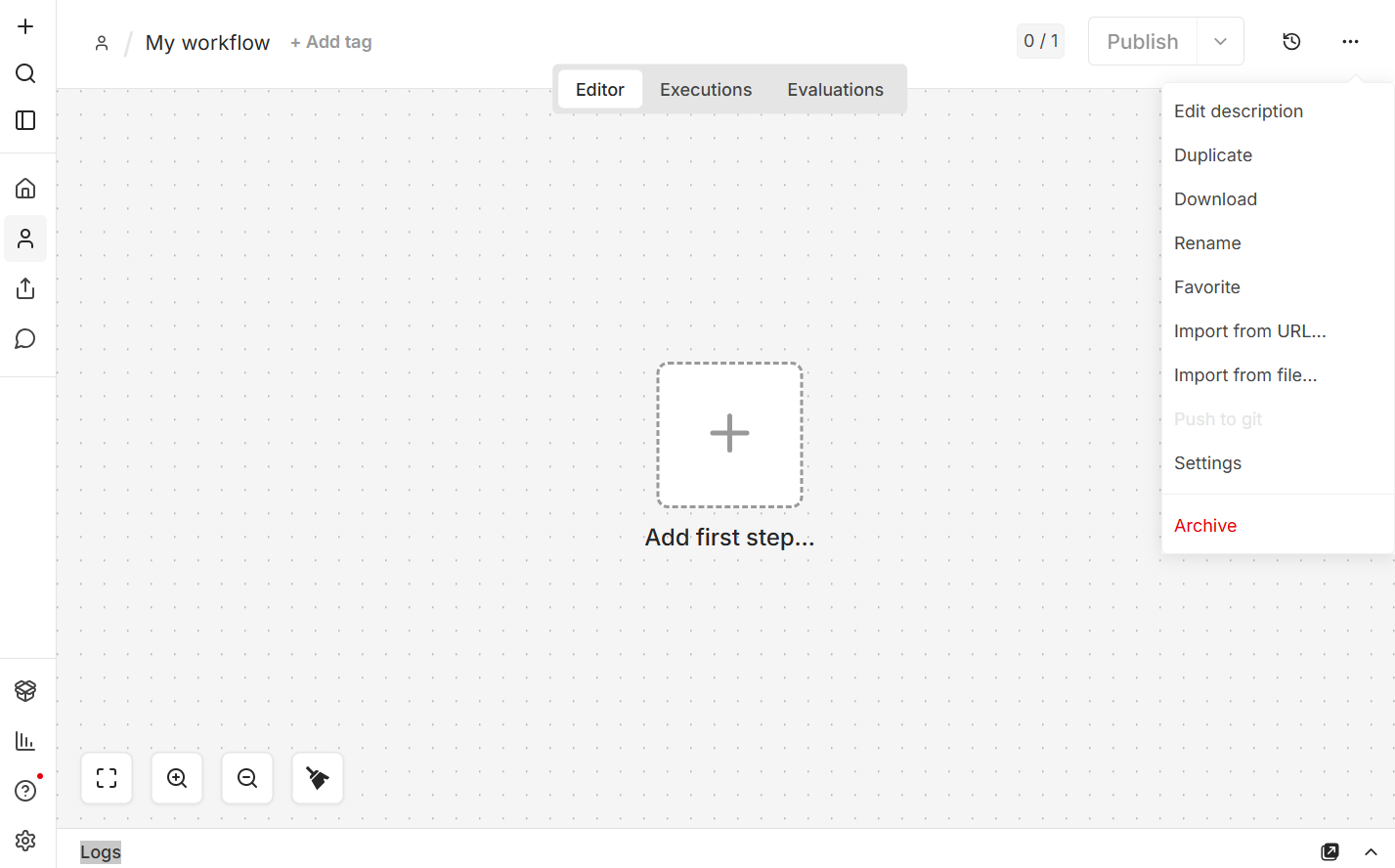
2. Open n8n in you [Dashboard](https://platform.glbnxt.com/) and create a workflow. Click on the three dots in the right corner of your screen and then on `Import from URL...`.
 3. Enter the URL in the pop-up that appears.
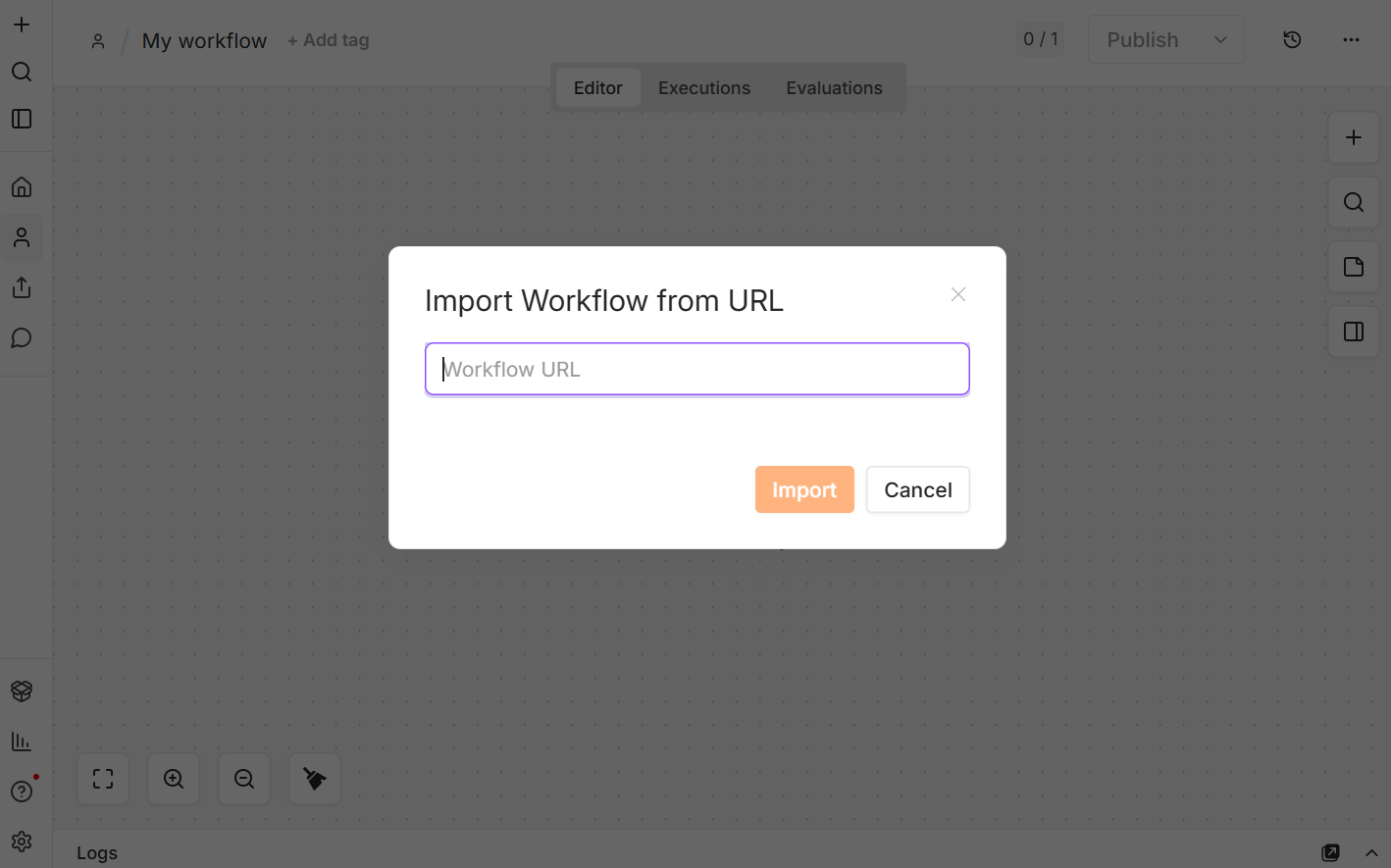 4. Click on `Import` and the Demo Workflow will appear on your page.
5. Follow the **Setup** in the Workflow.
***
#### Step 2: Create a Table
In the n8n application canvas, locate the section labeled **Postgres Database Maintenance**.
Double-click the node **Create Table** and execute it. This script establishes your core relational database architecture, incorporating constraints, primary UUID keys, and flexible `JSONB` properties to house downstream AI enrichments:
SQL
```
-- CREATE COMPANIES TABLE
CREATE TABLE crm_companies (
id UUID PRIMARY KEY DEFAULT uuid_generate_v4(),
name VARCHAR(255) NOT NULL UNIQUE, -- Unique constraint so AI can 'Upsert' on name
website VARCHAR(255),
created_at TIMESTAMP WITH TIME ZONE DEFAULT CURRENT_TIMESTAMP,
updated_at TIMESTAMP WITH TIME ZONE DEFAULT CURRENT_TIMESTAMP,
ai_research_enrichment JSONB DEFAULT '{}'::jsonb -- Flexible storage for your Research Agent
);
-- CREATE CONTACTS TABLE
CREATE TABLE crm_contacts (
id UUID PRIMARY KEY DEFAULT uuid_generate_v4(),
company_id UUID REFERENCES crm_companies(id) ON DELETE CASCADE,
first_name VARCHAR(100),
last_name VARCHAR(100) NOT NULL,
email VARCHAR(255) NOT NULL UNIQUE, -- Unique constraint so AI can 'Upsert' on email
phone VARCHAR(50),
job_title VARCHAR(150),
created_at TIMESTAMP WITH TIME ZONE DEFAULT CURRENT_TIMESTAMP,
ai_profile_enrichment JSONB DEFAULT '{}'::jsonb
);
```
***
#### Step 3: Initialize Inbound Webhook Listening
Navigate to the section titled **Webhook Trigger (OpenWebUI)**.
1. Open the **Webhook** node. It is preconfigured to listen for a `POST` request on the path `librechat-mcp`.
2. Copy the **Production URL** from this node.
3. Paste this endpoint directly into your OpenWebUI Pipe Function configuration settings (`n8n_url`) to securely funnel conversational payloads into the extraction pipeline.
***
#### Step 4: Configure Storage Engine & Relational Mapping
Locate the canvas block labeled **Store Information**. This module processes entities sequentially using cascading relationships to enforce clean data structures.
1. **Insert or Update 'crm\_companies':** This node maps incoming organizational names and domains, applying an *Upsert* rule anchored to the `name` column.
2. **Insert or Update 'crm\_contacts':** Maps stakeholder records using `email` as the matching constraint while automatically binding the correct parent `company_id` from the prior node.
3. **Insert 'crm\_interactions' & 'crm\_tasks':** Automatically records meeting logs and logs outstanding actions or filters. Double-click these nodes to verify that variable paths correctly intercept your inbound text arrays:
JavaScript
```
// Evaluates incoming array payloads for operational context matching
"due_date": "={{ $('Webhook').item.json.body.tasks[0].due_date }}"
```
***
#### Step 5: Validate Mutation Handlers & Autonomous Research
Move over to the parallel blocks running along the right side of the canvas. Once data fields are stored, the workflow forks into three distinct **AI Agents**:
* **Company Research Agent:** Uses your attached chat model to research the corporate entity using its name and website variables.
* **Person Research Agent:** Evaluates job titles to determine seniority levels, key executive focus regions, and tailor highly optimized sales hooks.
* **Relationship Research Agent:** Acts as an unstructured conversational text parser. It isolates emotional sentiment profiles and spots named competitors or friction patterns.
Review how each block requires its returned structured information to strip out accidental markdown tags. Open the data update nodes to review the JSON parameters:
JavaScript
````
// Automatically sanitizes LLM output strings to parse clean JSON objects
{{ typeof $json.output === 'string' ? ($json.output.includes('```json') ? JSON.parse($json.output.split('```json')[1].split('```')[0].trim()) : JSON.parse($json.output)) : $json.output }}
````
***
#### Step 6: Deploy Language Models & Enrichment Injection
Within the core intelligence block, link up your active model parameters.
1. Double-click **OpenAI Chat Model 1**, **2**, and **3**.
2. Attach your specific AI provider API credentials (e.g., your GLBNXT LiteLLM or OpenAI instance).
3. Confirm the target engine parameter is locked at exactly `gpt-4.1` (or your preferred core LLM engine).
4. The **Update** database layers will automatically catch these evaluated payloads and dump them directly into the target `ai_research_enrichment`, `ai_profile_enrichment`, and `ai_extracted_entities` JSONB columns.
***
#### Step 7: Manage Database State & Housekeeping
To audit your workflow output during deployment, return to the **Postgres Database Maintenance** zone.
* **View Tables Node:** Execute this node to verify running tracking statistics by viewing raw logs straight from your relational rows.
* **Truncate Tables Node:** During staging, manually trigger this block to cleanly reset all tracking rows and clear testing data without breaking database schemas:
SQL
```
TRUNCATE TABLE crm_companies, crm_contacts, crm_interactions, crm_tasks RESTART IDENTITY CASCADE;
```
***
*Need help? Contact the GLBNXT support team or ask a GLBNXT agent to walk you through the setup.*
---
# Agent Instructions
This documentation is published with GitBook. GitBook is the documentation platform designed so that both humans and AI agents can read, navigate, and reason over technical content effectively. Learn more at gitbook.com.
## Querying This Documentation
If you need additional information that is not directly available in this page, you can query the documentation dynamically by asking a question.
Perform an HTTP GET request on the current page URL with the `ask` query parameter, and the optional `goal` query parameter:
```
GET https://docs.glbnxt.com/tutorials/guides/use-case-instructions/crmiq-store-clients.md?ask=&goal=
```
`ask` is the immediate question: it should be specific, self-contained, and written in natural language.
`goal` is optional and describes the broader end goal you are ultimately trying to accomplish on behalf of the user. GitBook uses it to tailor the answer towards what is most useful for that goal.
The response will contain a direct answer to the question and relevant excerpts and sources from the documentation.
Use this mechanism when the answer is not explicitly present in the current page, you need clarification or additional context, or you want to retrieve related documentation sections.
4. Click on `Import` and the Demo Workflow will appear on your page.
5. Follow the **Setup** in the Workflow.
***
#### Step 2: Create a Table
In the n8n application canvas, locate the section labeled **Postgres Database Maintenance**.
Double-click the node **Create Table** and execute it. This script establishes your core relational database architecture, incorporating constraints, primary UUID keys, and flexible `JSONB` properties to house downstream AI enrichments:
SQL
```
-- CREATE COMPANIES TABLE
CREATE TABLE crm_companies (
id UUID PRIMARY KEY DEFAULT uuid_generate_v4(),
name VARCHAR(255) NOT NULL UNIQUE, -- Unique constraint so AI can 'Upsert' on name
website VARCHAR(255),
created_at TIMESTAMP WITH TIME ZONE DEFAULT CURRENT_TIMESTAMP,
updated_at TIMESTAMP WITH TIME ZONE DEFAULT CURRENT_TIMESTAMP,
ai_research_enrichment JSONB DEFAULT '{}'::jsonb -- Flexible storage for your Research Agent
);
-- CREATE CONTACTS TABLE
CREATE TABLE crm_contacts (
id UUID PRIMARY KEY DEFAULT uuid_generate_v4(),
company_id UUID REFERENCES crm_companies(id) ON DELETE CASCADE,
first_name VARCHAR(100),
last_name VARCHAR(100) NOT NULL,
email VARCHAR(255) NOT NULL UNIQUE, -- Unique constraint so AI can 'Upsert' on email
phone VARCHAR(50),
job_title VARCHAR(150),
created_at TIMESTAMP WITH TIME ZONE DEFAULT CURRENT_TIMESTAMP,
ai_profile_enrichment JSONB DEFAULT '{}'::jsonb
);
```
***
#### Step 3: Initialize Inbound Webhook Listening
Navigate to the section titled **Webhook Trigger (OpenWebUI)**.
1. Open the **Webhook** node. It is preconfigured to listen for a `POST` request on the path `librechat-mcp`.
2. Copy the **Production URL** from this node.
3. Paste this endpoint directly into your OpenWebUI Pipe Function configuration settings (`n8n_url`) to securely funnel conversational payloads into the extraction pipeline.
***
#### Step 4: Configure Storage Engine & Relational Mapping
Locate the canvas block labeled **Store Information**. This module processes entities sequentially using cascading relationships to enforce clean data structures.
1. **Insert or Update 'crm\_companies':** This node maps incoming organizational names and domains, applying an *Upsert* rule anchored to the `name` column.
2. **Insert or Update 'crm\_contacts':** Maps stakeholder records using `email` as the matching constraint while automatically binding the correct parent `company_id` from the prior node.
3. **Insert 'crm\_interactions' & 'crm\_tasks':** Automatically records meeting logs and logs outstanding actions or filters. Double-click these nodes to verify that variable paths correctly intercept your inbound text arrays:
JavaScript
```
// Evaluates incoming array payloads for operational context matching
"due_date": "={{ $('Webhook').item.json.body.tasks[0].due_date }}"
```
***
#### Step 5: Validate Mutation Handlers & Autonomous Research
Move over to the parallel blocks running along the right side of the canvas. Once data fields are stored, the workflow forks into three distinct **AI Agents**:
* **Company Research Agent:** Uses your attached chat model to research the corporate entity using its name and website variables.
* **Person Research Agent:** Evaluates job titles to determine seniority levels, key executive focus regions, and tailor highly optimized sales hooks.
* **Relationship Research Agent:** Acts as an unstructured conversational text parser. It isolates emotional sentiment profiles and spots named competitors or friction patterns.
Review how each block requires its returned structured information to strip out accidental markdown tags. Open the data update nodes to review the JSON parameters:
JavaScript
````
// Automatically sanitizes LLM output strings to parse clean JSON objects
{{ typeof $json.output === 'string' ? ($json.output.includes('```json') ? JSON.parse($json.output.split('```json')[1].split('```')[0].trim()) : JSON.parse($json.output)) : $json.output }}
````
***
#### Step 6: Deploy Language Models & Enrichment Injection
Within the core intelligence block, link up your active model parameters.
1. Double-click **OpenAI Chat Model 1**, **2**, and **3**.
2. Attach your specific AI provider API credentials (e.g., your GLBNXT LiteLLM or OpenAI instance).
3. Confirm the target engine parameter is locked at exactly `gpt-4.1` (or your preferred core LLM engine).
4. The **Update** database layers will automatically catch these evaluated payloads and dump them directly into the target `ai_research_enrichment`, `ai_profile_enrichment`, and `ai_extracted_entities` JSONB columns.
***
#### Step 7: Manage Database State & Housekeeping
To audit your workflow output during deployment, return to the **Postgres Database Maintenance** zone.
* **View Tables Node:** Execute this node to verify running tracking statistics by viewing raw logs straight from your relational rows.
* **Truncate Tables Node:** During staging, manually trigger this block to cleanly reset all tracking rows and clear testing data without breaking database schemas:
SQL
```
TRUNCATE TABLE crm_companies, crm_contacts, crm_interactions, crm_tasks RESTART IDENTITY CASCADE;
```
***
*Need help? Contact the GLBNXT support team or ask a GLBNXT agent to walk you through the setup.*
---
# Agent Instructions
This documentation is published with GitBook. GitBook is the documentation platform designed so that both humans and AI agents can read, navigate, and reason over technical content effectively. Learn more at gitbook.com.
## Querying This Documentation
If you need additional information that is not directly available in this page, you can query the documentation dynamically by asking a question.
Perform an HTTP GET request on the current page URL with the `ask` query parameter, and the optional `goal` query parameter:
```
GET https://docs.glbnxt.com/tutorials/guides/use-case-instructions/crmiq-store-clients.md?ask=&goal=
```
`ask` is the immediate question: it should be specific, self-contained, and written in natural language.
`goal` is optional and describes the broader end goal you are ultimately trying to accomplish on behalf of the user. GitBook uses it to tailor the answer towards what is most useful for that goal.
The response will contain a direct answer to the question and relevant excerpts and sources from the documentation.
Use this mechanism when the answer is not explicitly present in the current page, you need clarification or additional context, or you want to retrieve related documentation sections.