> For the complete documentation index, see [llms.txt](https://docs.glbnxt.com/llms.txt). Markdown versions of documentation pages are available by appending `.md` to page URLs; this page is available as [Markdown](https://docs.glbnxt.com/tutorials/guides/coding/opencode.md).
# Set up OpenCode with GLBNXT
### Introduction
OpenCode is an open-source AI coding agent designed to run in your terminal, helping developers automate tasks like debugging and refactoring without being locked into a single model provider. Below is a guide on how to connect your API developer key to OpenCode.
### Prerequisites
* **GLBNXT API Key**: You must have an active developer key. If you haven't created one yet, follow our [Developer Keys Guide](https://docs.glbnxt.com/configure-glbnxt/ai-platform/developer-keys).
* **OpenCode Installed**: Download and install the desktop client from the [OpenCode download page](https://opencode.ai/download).
### Configuration Methods
There are two ways to connect GLBNXT to OpenCode. We **highly recommend the Manual approach** for production environments as it provides better control over model IDs and usage tracking.
#### 1. Manual Configuration (Recommended)
The manual method involves creating two configuration files. This allows you to include your developer key name for precise usage insights.
**Step A: Configure the Provider**
Create a file named `opencode.json` in your local config directory: `~/.config/opencode/opencode.json` Use the following template, replacing `YOUR_MODEL` with the exact **Model ID** found in the GLBNXT Model Hub.
```json
{
"$schema": "https://opencode.ai/config.json",
"disabled_providers": [],
"plugin": ["YOUR_DEVELOPER_KEY_NAME"],
"provider": {
"glbnxt": {
"npm": "@ai-sdk/openai-compatible",
"name": "GLBNXT",
"options": {
"baseURL": "https://ai.glbnxt.com/v1"
},
"models": {
"YOUR_MODEL": {"name": "YOUR_MODEL_NAME"},
"YOUR_MODEL_2": {"name": "YOUR_MODEL_2_NAME"}
}
}
}
}
}
```
**Step B: Add Authentication**
Create a file named `auth.json` to securely store your credentials: `~/.local/share/opencode/auth.json`
```json
{
"glbnxt": {
"type": "api",
"key": "YOUR_DEVELOPER_GLBNXT_API_KEY"
}
}
```
#### 2. Automatic Configuration (Quick Start)
If you prefer a GUI-based setup, you can configure the connection directly within the OpenCode application.
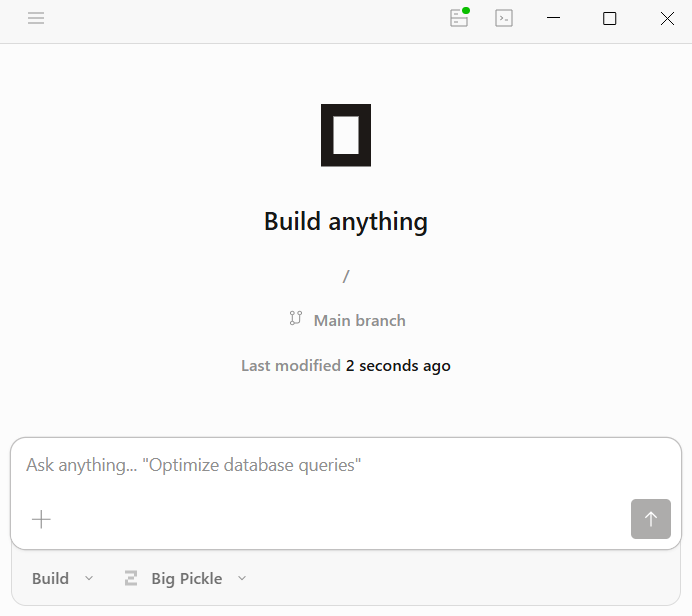
1. **Launch OpenCode**: Open the application on your desktop.
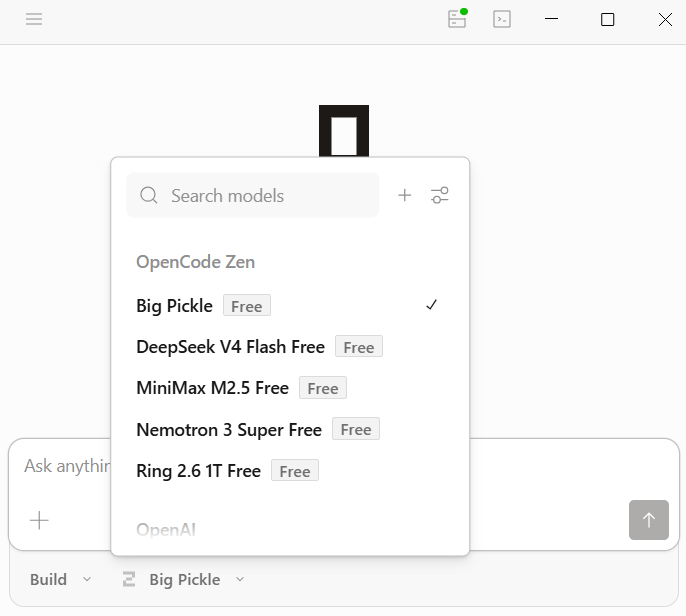
2. **Access Model Selection**: Click on the **Big Pickle** icon at the bottom in the main window.
 3. **Add Custom Provider**:
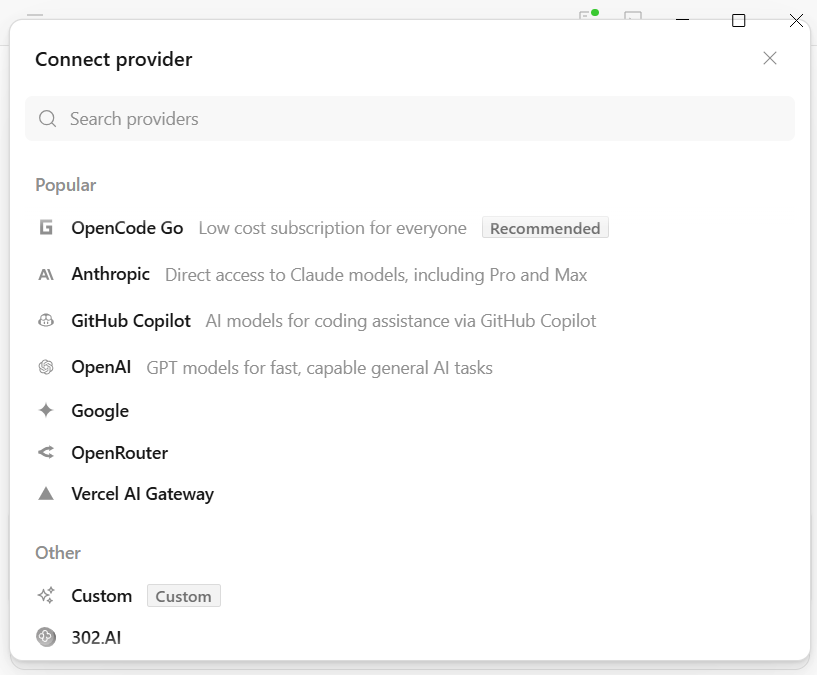
* Click the **+** icon in the top-right corner of the pop-up.
3. **Add Custom Provider**:
* Click the **+** icon in the top-right corner of the pop-up.
 * Navigate to **Other** > **Custom**.
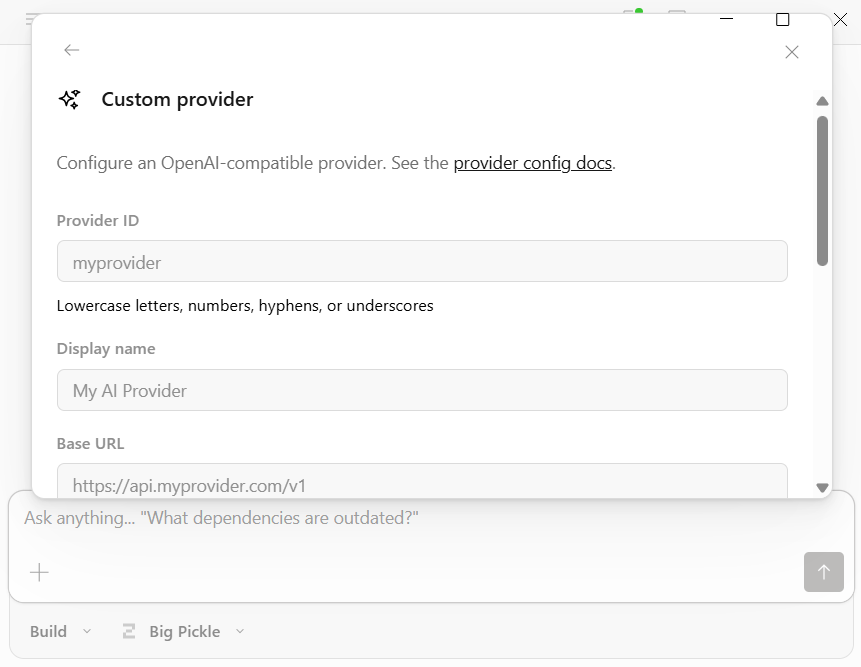
 4. **Enter Connection Details**:
* **Base URL**: `https://ai.glbnxt.com/v1`
* **API Key**: Your GLBNXT developer key.
* **Models**: Add your desired models. Ensure the **Model ID** matches the Model Hub exactly.
4. **Enter Connection Details**:
* **Base URL**: `https://ai.glbnxt.com/v1`
* **API Key**: Your GLBNXT developer key.
* **Models**: Add your desired models. Ensure the **Model ID** matches the Model Hub exactly.
 ### Selecting Your Model
Once configured, you can switch between GLBNXT models at any time:
1. Click the **Big Pickle** icon.
2. Select your preferred model from the list.
### Selecting Your Model
Once configured, you can switch between GLBNXT models at any time:
1. Click the **Big Pickle** icon.
2. Select your preferred model from the list.
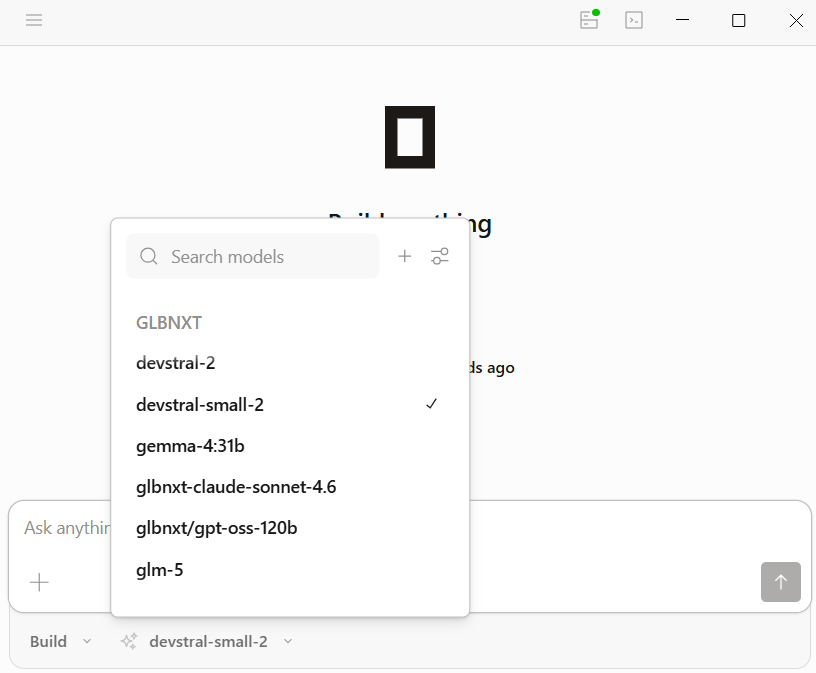 3. The agent will immediately begin using the GLBNXT endpoint for all subsequent tasks.
### Troubleshooting
* **Model ID Mismatch**: If OpenCode fails to initialize, double-check that the key in the `"models"` object (Manual) or the "Model ID" field (Automatic) matches the ID in the GLBNXT Model Hub exactly.
* **Pathing**: Ensure configuration files are placed in the correct hidden directories (`.config` and `.local`).
For more information reach out to the [OpenCode Documentation Page](https://opencode.ai/docs).
---
# Agent Instructions
This documentation is published with GitBook. GitBook is the documentation platform designed so that both humans and AI agents can read, navigate, and reason over technical content effectively. Learn more at gitbook.com.
## Querying This Documentation
If you need additional information that is not directly available in this page, you can query the documentation dynamically by asking a question.
Perform an HTTP GET request on the current page URL with the `ask` query parameter, and the optional `goal` query parameter:
```
GET https://docs.glbnxt.com/tutorials/guides/coding/opencode.md?ask=&goal=
```
`ask` is the immediate question: it should be specific, self-contained, and written in natural language.
`goal` is optional and describes the broader end goal you are ultimately trying to accomplish on behalf of the user. GitBook uses it to tailor the answer towards what is most useful for that goal.
The response will contain a direct answer to the question and relevant excerpts and sources from the documentation.
Use this mechanism when the answer is not explicitly present in the current page, you need clarification or additional context, or you want to retrieve related documentation sections.
3. The agent will immediately begin using the GLBNXT endpoint for all subsequent tasks.
### Troubleshooting
* **Model ID Mismatch**: If OpenCode fails to initialize, double-check that the key in the `"models"` object (Manual) or the "Model ID" field (Automatic) matches the ID in the GLBNXT Model Hub exactly.
* **Pathing**: Ensure configuration files are placed in the correct hidden directories (`.config` and `.local`).
For more information reach out to the [OpenCode Documentation Page](https://opencode.ai/docs).
---
# Agent Instructions
This documentation is published with GitBook. GitBook is the documentation platform designed so that both humans and AI agents can read, navigate, and reason over technical content effectively. Learn more at gitbook.com.
## Querying This Documentation
If you need additional information that is not directly available in this page, you can query the documentation dynamically by asking a question.
Perform an HTTP GET request on the current page URL with the `ask` query parameter, and the optional `goal` query parameter:
```
GET https://docs.glbnxt.com/tutorials/guides/coding/opencode.md?ask=&goal=
```
`ask` is the immediate question: it should be specific, self-contained, and written in natural language.
`goal` is optional and describes the broader end goal you are ultimately trying to accomplish on behalf of the user. GitBook uses it to tailor the answer towards what is most useful for that goal.
The response will contain a direct answer to the question and relevant excerpts and sources from the documentation.
Use this mechanism when the answer is not explicitly present in the current page, you need clarification or additional context, or you want to retrieve related documentation sections.