> For the complete documentation index, see [llms.txt](https://docs.glbnxt.com/llms.txt). Markdown versions of documentation pages are available by appending `.md` to page URLs; this page is available as [Markdown](https://docs.glbnxt.com/configure-glbnxt/platform-configuration/application-management/my-apps/set-environment-variables.md).
# Set environment variables
{% hint style="info" icon="user-lock" %}
**Role-based access**
What each role can do on this page. Roles are assigned in [User management](/configure-glbnxt/platform-configuration/user-management.md).
| Administrator | Moderator | User |
| ---------------------------------------------- | ----------------------------------------- | ----------------------------------------- |
| :check: Read and write | :xmark: No access | :xmark: No access |
| {% endhint %} | | |
***
Most applications need some configuration when they start: the address of a database, a log level, a feature flag. On the GLBNXT Platform you supply these as environment variables, and the platform hands them to your container every time it starts.
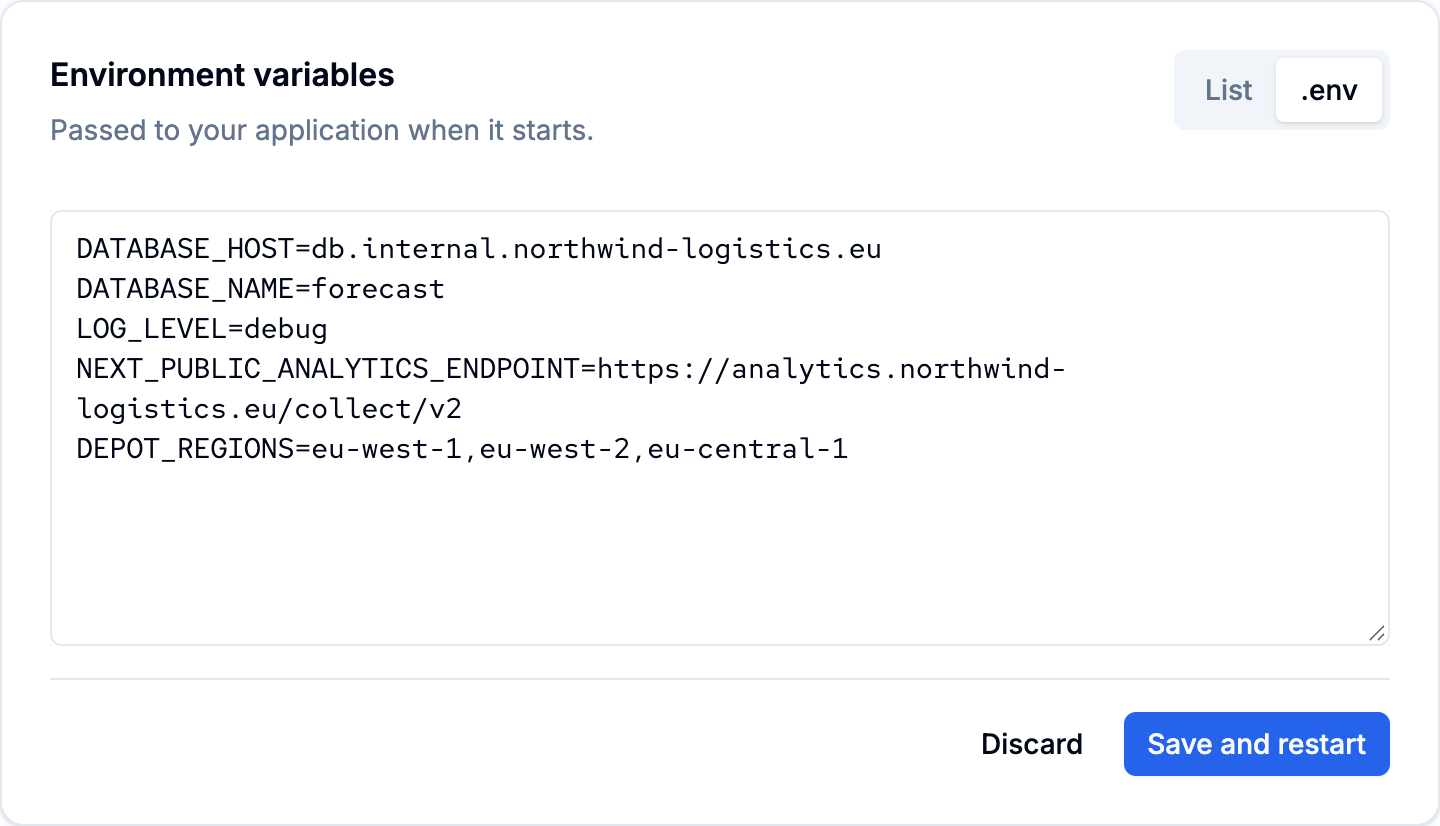
This guide covers adding them when you deploy an application, changing them afterwards, and pasting in a `.env` file you already have.
### Add variables one at a time
You can add variables on the deploy form, below **Container image**, or later on the application page, below **Runtime**. Both use the same **Environment variables** card.
1. Click **Add variable**. A row appears with a **Name** and a **Value** field.
2. Type the name, then the value. Names are usually written in capitals with underscores, for example `DATABASE_HOST`.
3. Repeat for each variable your application needs.
4. On the deploy form, deploy as normal. On the application page, choose **Save and restart**.
A row you left completely empty is ignored. A row with only a name or only a value is reported as an error.
### Paste a `.env` file
If you already have the variables in a file, you can paste it in one go.
1. Switch the card to the text view. On the deploy form, click **Edit as .env** in the card header. On the application page, choose the **.env** tab. The rows are replaced by a single text box.
2. Paste the contents of your file.
3. Switch back the same way: **Edit as list** on the deploy form, or the **List** tab on the application page.
The text is read as one `NAME=value` per line. Blank lines and lines starting with `#` are ignored, a leading `export` is removed, and surrounding quotes are stripped from the value. Everything after the first `=` is the value, so a line like `DSN=postgres://user:pass@host/db?a=b` works as you would expect.
Each value must be on one line. If a value wraps onto a second line, the message names that line and your text stays exactly as you pasted it.
### Change or remove a variable
In **My Apps**, choose **Manage** next to the application. The **Environment variables** card sits below **Runtime**.
1. Click in a name or value and type your change. Each changed row is marked **Unsaved**.
2. To remove a variable, click the bin icon at the end of its row.
3. Choose **Save and restart** to apply your changes, or **Discard** to undo them.
All your changes are applied together when you choose **Save and restart**.
### What happens when you save
Your application restarts with the new values. It keeps its address, and the restart takes about as long as a normal deploy. Anything the application was holding only in memory is lost, as with any other restart.
### If a name is refused
Some names are not allowed: the platform reserves the `GLBNXT_` prefix for the variables it supplies itself, and a name has to be a valid environment variable name. The message appears under the row it is about, and nothing else you typed is lost. [Environment variable rules](/configure-glbnxt/platform-configuration/application-management/my-apps/environment-variable-rules.md) lists every rule in full.
---
# Agent Instructions
This documentation is published with GitBook. GitBook is the documentation platform designed so that both humans and AI agents can read, navigate, and reason over technical content effectively. Learn more at gitbook.com.
## Querying This Documentation
If you need additional information that is not directly available in this page, you can query the documentation by asking a question.
Perform an HTTP GET request on the following URL with the `ask` and `goal` query parameters:
```
GET https://docs.glbnxt.com/configure-glbnxt/platform-configuration/application-management/my-apps/set-environment-variables.md?ask=&goal=
```
`ask` is the immediate question: it should be specific, self-contained, and written in natural language.
`goal` is what the user is ultimately trying to achieve, the reason they need the answer. Sharing it helps GitBook give you a better, more relevant answer. A goal is most helpful when it describes the outcome the user wants rather than restating the question. For example, with `ask=how do I create an API token`, a goal like `automate deployments from our CI pipeline` lets GitBook tailor the answer to that use case.
The response will contain a direct answer to the question and relevant excerpts and sources from the documentation.
Use this mechanism when the answer is not explicitly present in the current page, you need clarification or additional context, or you want to retrieve related documentation sections.