> For the complete documentation index, see [llms.txt](https://docs.glbnxt.com/llms.txt). Markdown versions of documentation pages are available by appending `.md` to page URLs; this page is available as [Markdown](https://docs.glbnxt.com/configure-glbnxt/platform-configuration/application-management/my-apps/manage-an-application.md).
# Manage an application
{% hint style="info" icon="user-lock" %}
**Role-based access**
What each role can do on this page. Roles are assigned in [User management](/configure-glbnxt/platform-configuration/user-management.md).
| Administrator | Moderator | User |
| ---------------------------------------------- | ----------------------------------------- | ----------------------------------------- |
| :check: Read and write | :xmark: No access | :xmark: No access |
| {% endhint %} | | |
***
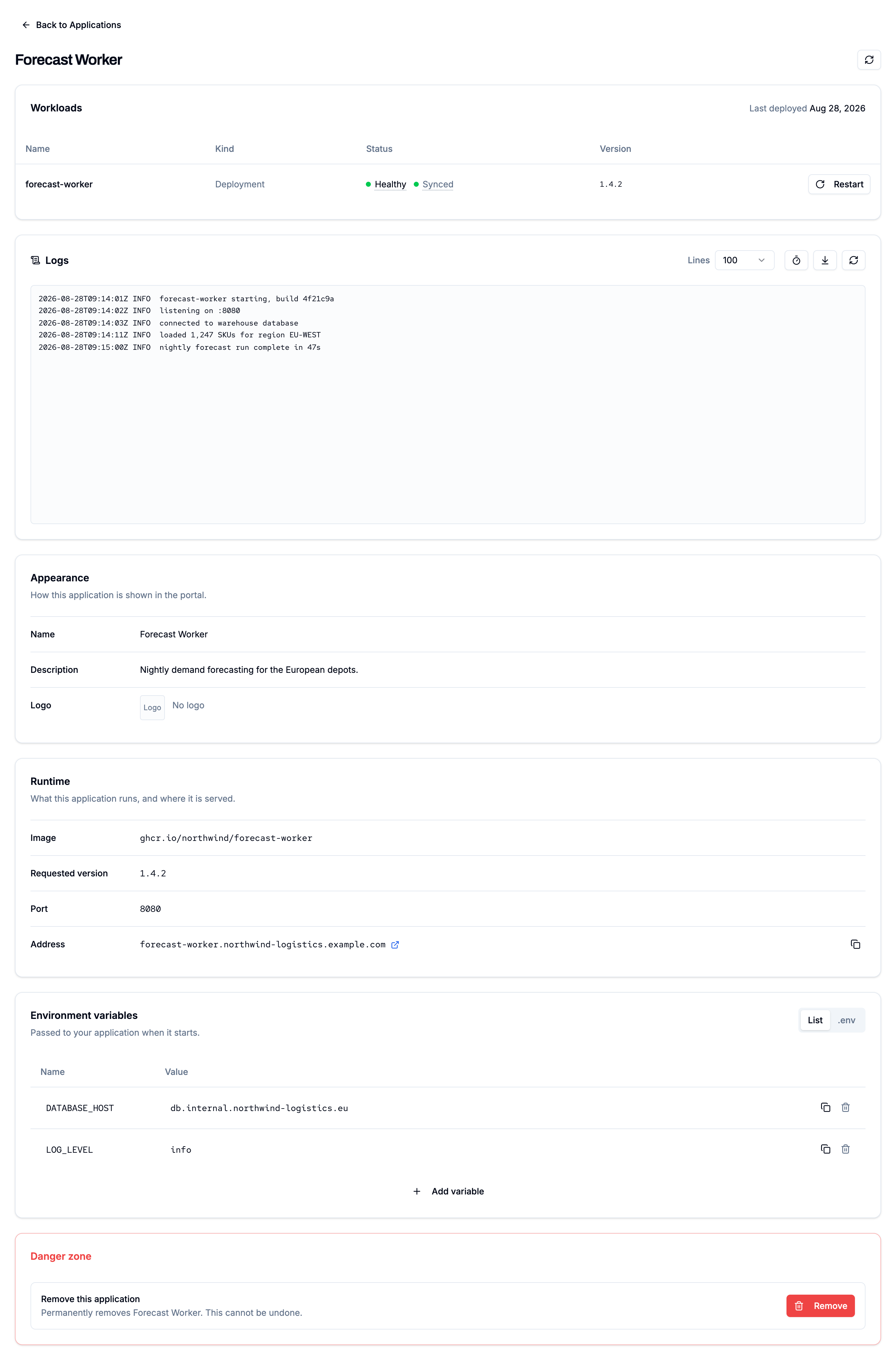
Everything about an application lives on one page: its status, its logs, its settings and the option to remove it. To open it, choose **Manage** next to the application in **My Apps**.
From top to bottom, the page shows:
* the header with logo, name and **Refresh**
* the deploy progress for a new application, or **Workloads** and **Logs** once it runs
* the progress of a change, while one is rolling out
* **Appearance**, **Runtime** and **Environment variables**, where you make changes
* the **Danger zone**, where you remove the application
### Follow a new deploy
A new application goes through four steps: **Configuration checked**, **Saved to the platform**, **Picked up by the platform** and **Running**. New applications are normally picked up within a few minutes.
### Check on a running application
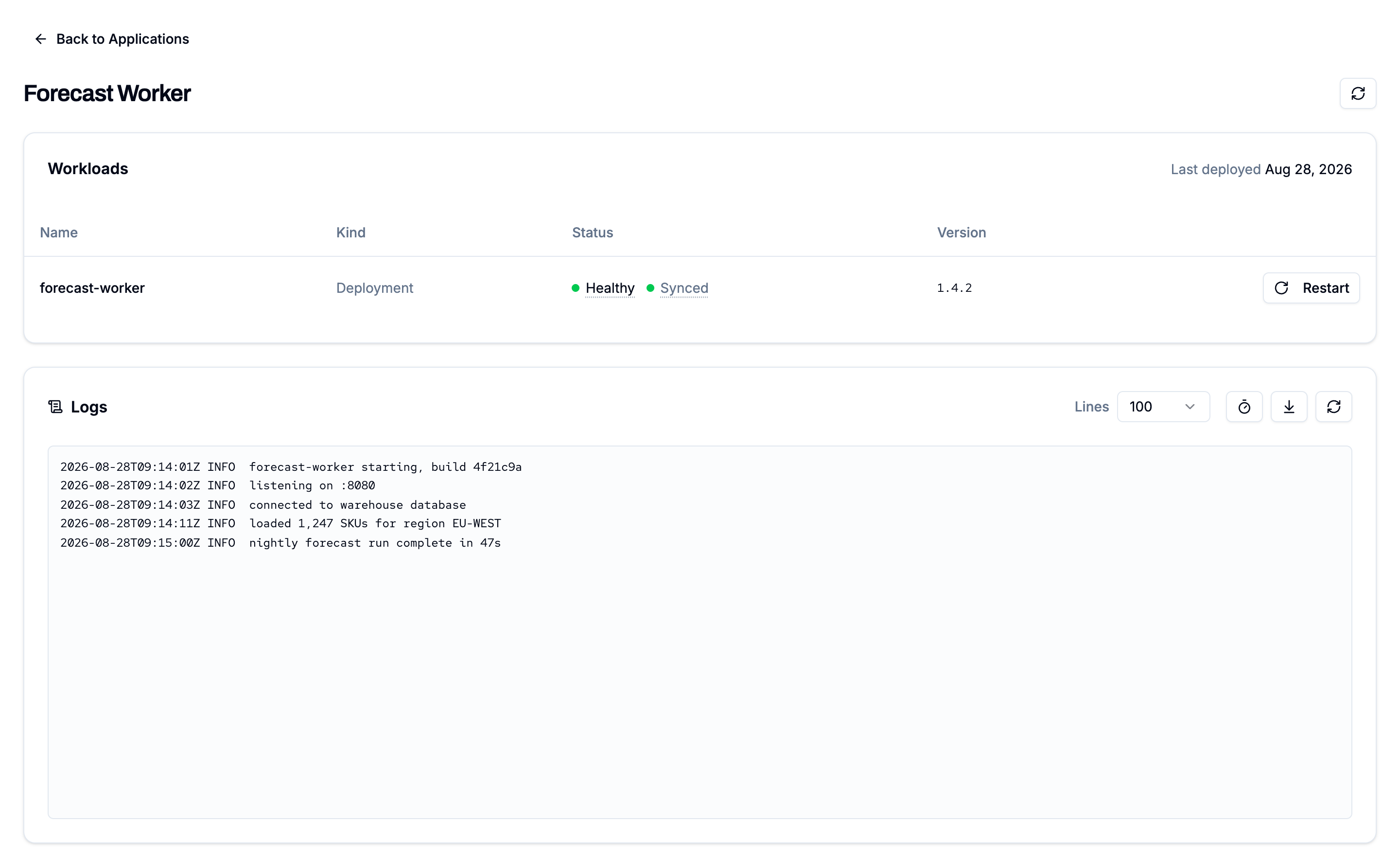
**Workloads** lists the parts that make up your application, with their name, kind, status and version.
### Read the logs
The **Logs** panel shows the most recent output of your application.
* Choose how many lines to show: 100, 500 or 1000.
* If your application has more than one container, choose which one.
* Turn on **Auto-refresh** to update the logs every 10 seconds. It is off by default.
* **Scroll to newest lines** keeps the latest output in view. It is on by default.
* **Refresh logs** loads the latest output once.
If your application hasn't started, the panel tells you why. For example: "We couldn't download your container image. Check the image name and tag are right, and that the image is publicly readable."
Every time someone views an application's logs, it is recorded in your organisation's [audit log](/configure-glbnxt/platform-configuration/compliance/audit-logs.md).
### Restart an application
Choose **Restart** on a workload to restart it without changing any settings. Containers are replaced one at a time, so an application that runs more than one container stays available throughout.
Confirm in the dialog. The restart then completes within about a minute.
Restart is available for workloads of the kind **Deployment**.
### Change an application
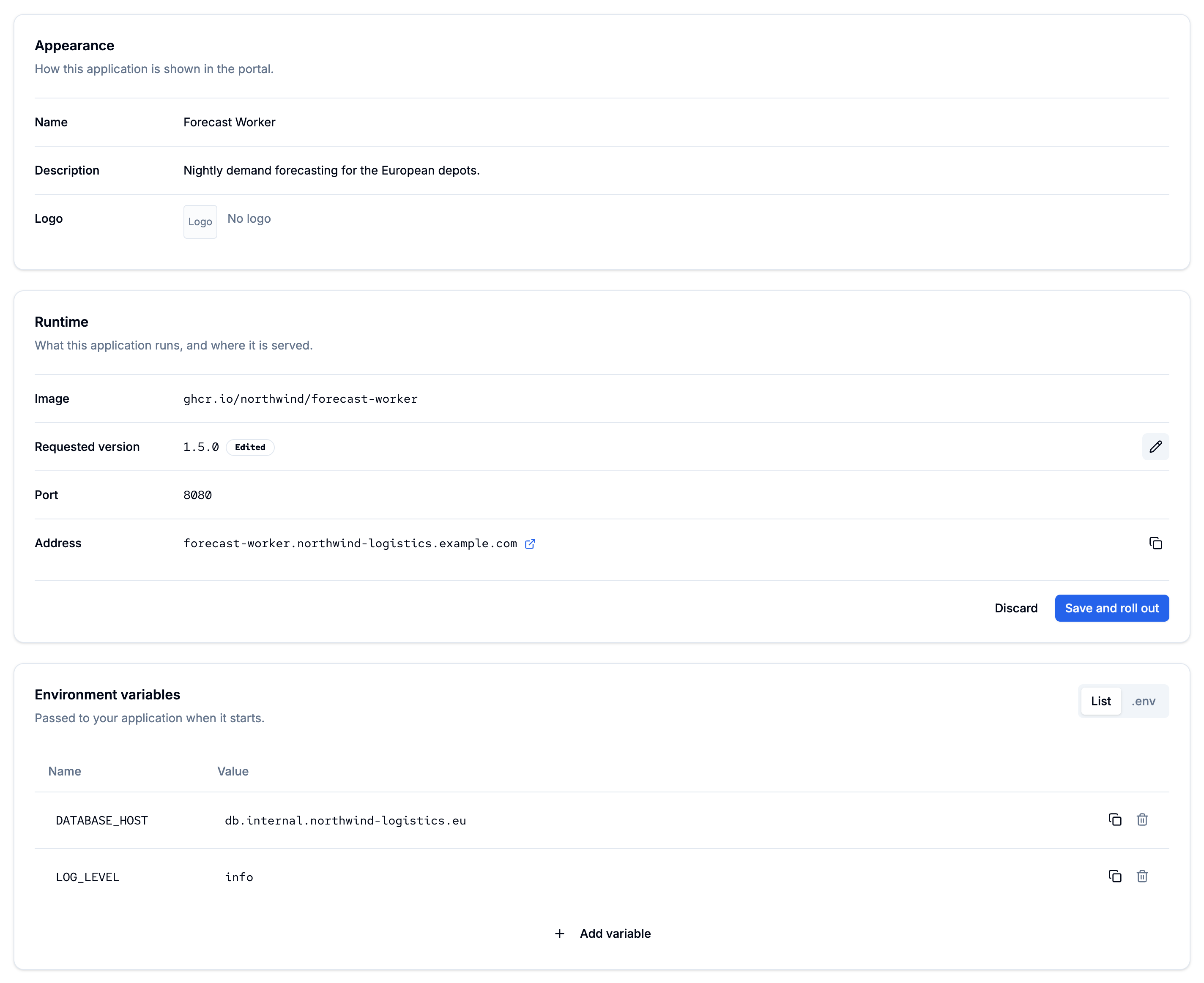
Every change is made in place on the application page. In the **Appearance** and **Runtime** cards:
1. Click the pencil next to the value you want to change.
2. Edit it. Changed rows are marked **Edited**.
3. Save the card, or choose **Discard** to undo your changes.
In the **Environment variables** card you edit the fields directly. See [Set environment variables](/configure-glbnxt/platform-configuration/application-management/my-apps/set-environment-variables.md).
How a change takes effect depends on the card:
* **Appearance** (name, description, logo): **Save**. Takes effect straight away and doesn't touch the running application.
* **Runtime** (image, requested version, port): **Save and roll out**. Your application is updated to the new settings. The address is shown here too, but it can't be changed.
* **Environment variables**: **Save and restart**. Your application restarts with the new values. See [Set environment variables](/configure-glbnxt/platform-configuration/application-management/my-apps/set-environment-variables.md).
While a runtime or environment variable change rolls out, a progress card follows it through **Saved**, **Picked up by the platform**, **Applying**, **Restarting** and **Running**. When it is done, you'll see "Running your new configuration" and the time it went live.
{% hint style="info" %}
While a new application is still being deployed, you can change its appearance but not its runtime settings or environment variables. Wait until it is running.
{% endhint %}
### Remove an application
{% hint style="danger" %}
Removing an application is permanent and starts as soon as you confirm. It can't be undone.
{% endhint %}
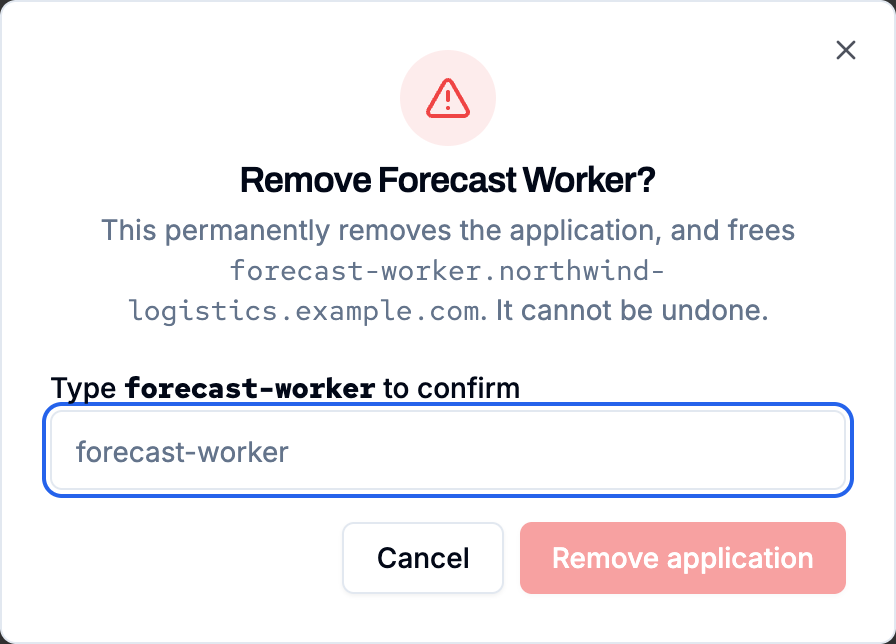
1. Scroll to the **Danger zone** and choose **Remove**.
2. Type the application's address to confirm. The dialog shows which address will become free.
3. Confirm.
The application shows as **Removing** in the list and stops within a few minutes. Its address becomes available again.
You can't remove an application while it is still being deployed.
---
# Agent Instructions
This documentation is published with GitBook. GitBook is the documentation platform designed so that both humans and AI agents can read, navigate, and reason over technical content effectively. Learn more at gitbook.com.
## Querying This Documentation
If you need additional information that is not directly available in this page, you can query the documentation by asking a question.
Perform an HTTP GET request on the following URL with the `ask` and `goal` query parameters:
```
GET https://docs.glbnxt.com/configure-glbnxt/platform-configuration/application-management/my-apps/manage-an-application.md?ask=&goal=
```
`ask` is the immediate question: it should be specific, self-contained, and written in natural language.
`goal` is what the user is ultimately trying to achieve, the reason they need the answer. Sharing it helps GitBook give you a better, more relevant answer. A goal is most helpful when it describes the outcome the user wants rather than restating the question. For example, with `ask=how do I create an API token`, a goal like `automate deployments from our CI pipeline` lets GitBook tailor the answer to that use case.
The response will contain a direct answer to the question and relevant excerpts and sources from the documentation.
Use this mechanism when the answer is not explicitly present in the current page, you need clarification or additional context, or you want to retrieve related documentation sections.