> For the complete documentation index, see [llms.txt](https://docs.glbnxt.com/llms.txt). Markdown versions of documentation pages are available by appending `.md` to page URLs; this page is available as [Markdown](https://docs.glbnxt.com/configure-glbnxt/platform-configuration/application-management/my-apps/deploy-an-application.md).
# Deploy an application
{% hint style="info" icon="user-lock" %}
**Role-based access**
What each role can do on this page. Roles are assigned in [User management](/configure-glbnxt/platform-configuration/user-management.md).
| Administrator | Moderator | User |
| ---------------------------------------------- | ----------------------------------------- | ----------------------------------------- |
| :check: Read and write | :xmark: No access | :xmark: No access |
| {% endhint %} | | |
***
This guide takes you from a container image to a running application with its own web address.
### Before you start
Check these three things first. They are the most common reasons a deploy doesn't start.
* **Your image is public.** It must be readable without signing in, from Docker Hub, GitHub, Google, Microsoft or Quay. Private registries are not supported.
* **Your image runs as a non-root user, given by number.** An image that runs as root, or that names its user instead of giving a user ID, won't start on GLBNXT. Many images publish a non-root variant, often with a `-nonroot` tag.
* **You know the exact version.** Pick a specific tag, such as `1.4.2`. `latest` is not accepted, because a deployment must always point to a fixed version.
### Open the deploy form
1. In the sidebar, go to **Platform Configuration → Application Management**.
2. Open the **My Apps** tab.
3. Choose **Add application**. The **Deploy a new application** form opens.
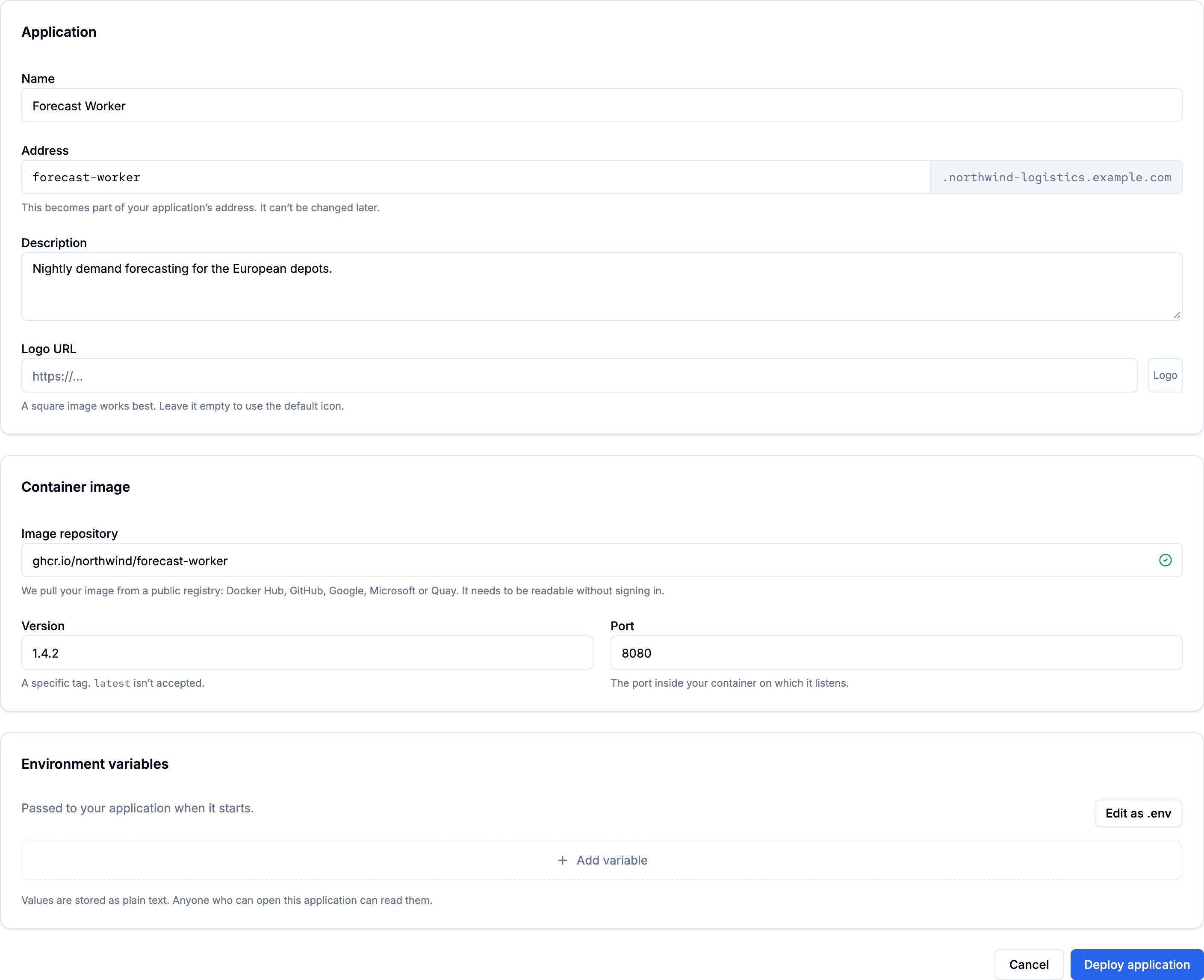
### 1. Describe your application
In the **Application** card:
* **Name** (required, up to 100 characters). This is how the application appears in the portal.
* **Address**. This is filled in from the name, using lowercase letters, numbers and hyphens. You can adjust it before you deploy. **It can't be changed later**, so choose carefully. If it is already taken, you'll see "That address is already in use. Choose another name."
* **Description** (optional, up to 500 characters).
* **Logo URL** (optional). A link to an image, starting with `https://`. A square image works best, and the link must open without signing in. Leave it empty to use the default icon.
### 2. Choose your container image
In the **Container image** card:
* **Image repository**, for example `ghcr.io/your-org/your-app`. When you leave the field, the portal checks the registry and shows the result as an icon: the image was found, it wasn't found or isn't public, the registry couldn't be reached, or the image couldn't be checked. A found image is a good sign, but it doesn't guarantee the application will start.
* **Version**: the exact tag to run. `latest` is refused.
* **Port**: the port inside your container that your application listens on, from **1024 to 65535**. If the image declares a port, it is filled in for you.
If the image runs as root, an amber warning appears: **This image won't start on our platform.** You can still deploy, but the application won't start. Switch to a non-root version of the image first.
{% hint style="info" %}
Image checks are limited to 6 per user per hour. If you reach the limit, you can still deploy. The check simply won't run until the hour has passed.
{% endhint %}
### 3. Add environment variables (optional)
If your application needs configuration at startup, add it in the **Environment variables** card. See [Set environment variables](/configure-glbnxt/platform-configuration/application-management/my-apps/set-environment-variables.md) for the steps and [Environment variable rules](/configure-glbnxt/platform-configuration/application-management/my-apps/environment-variable-rules.md) for what is allowed.
{% hint style="warning" %}
Environment variable values are stored as plain text. Never put passwords, API keys or tokens in them.
{% endhint %}
### 4. Deploy
Choose **Deploy application**. The button becomes available once name, address, image, version and port are filled in.
You land on the application page, where you can follow the deploy step by step. New applications are normally running within a few minutes. See [Manage an application](/configure-glbnxt/platform-configuration/application-management/my-apps/manage-an-application.md) for what each step means.
### If the application doesn't start
If the application stays on **Deploying** or turns **Degraded**, open it and check the logs. See [Why won't my application start?](https://github.com/GLBNXT/glbnxt-docs/tree/main/faq/glbnxt-platform/why-wont-my-application-start.md).
---
# Agent Instructions
This documentation is published with GitBook. GitBook is the documentation platform designed so that both humans and AI agents can read, navigate, and reason over technical content effectively. Learn more at gitbook.com.
## Querying This Documentation
If you need additional information that is not directly available in this page, you can query the documentation by asking a question.
Perform an HTTP GET request on the following URL with the `ask` and `goal` query parameters:
```
GET https://docs.glbnxt.com/configure-glbnxt/platform-configuration/application-management/my-apps/deploy-an-application.md?ask=&goal=
```
`ask` is the immediate question: it should be specific, self-contained, and written in natural language.
`goal` is what the user is ultimately trying to achieve, the reason they need the answer. Sharing it helps GitBook give you a better, more relevant answer. A goal is most helpful when it describes the outcome the user wants rather than restating the question. For example, with `ask=how do I create an API token`, a goal like `automate deployments from our CI pipeline` lets GitBook tailor the answer to that use case.
The response will contain a direct answer to the question and relevant excerpts and sources from the documentation.
Use this mechanism when the answer is not explicitly present in the current page, you need clarification or additional context, or you want to retrieve related documentation sections.