> For the complete documentation index, see [llms.txt](https://docs.glbnxt.com/llms.txt). Markdown versions of documentation pages are available by appending `.md` to page URLs; this page is available as [Markdown](https://docs.glbnxt.com/configure-glbnxt/platform-configuration/application-management/my-apps.md).
# My Apps
{% hint style="info" icon="user-lock" %}
**Role-based access**
What each role can do on this page. Roles are assigned in [User management](/configure-glbnxt/platform-configuration/user-management.md).
| Administrator | Moderator | User |
| ---------------------------------------------- | ----------------------------------------- | ----------------------------------------- |
| :check: Read and write | :xmark: No access | :xmark: No access |
| {% endhint %} | | |
***
My Apps lets you run your own software on GLBNXT. You bring a container image. We give it a secure web address, a certificate and the networking to reach it, and keep it running.
You supply three things:
* a **public container image**, such as `ghcr.io/your-org/your-app`
* a **version**, the exact tag you want to run
* a **port**, the one your application listens on
Everything else is handled for you.
### Your applications at a glance
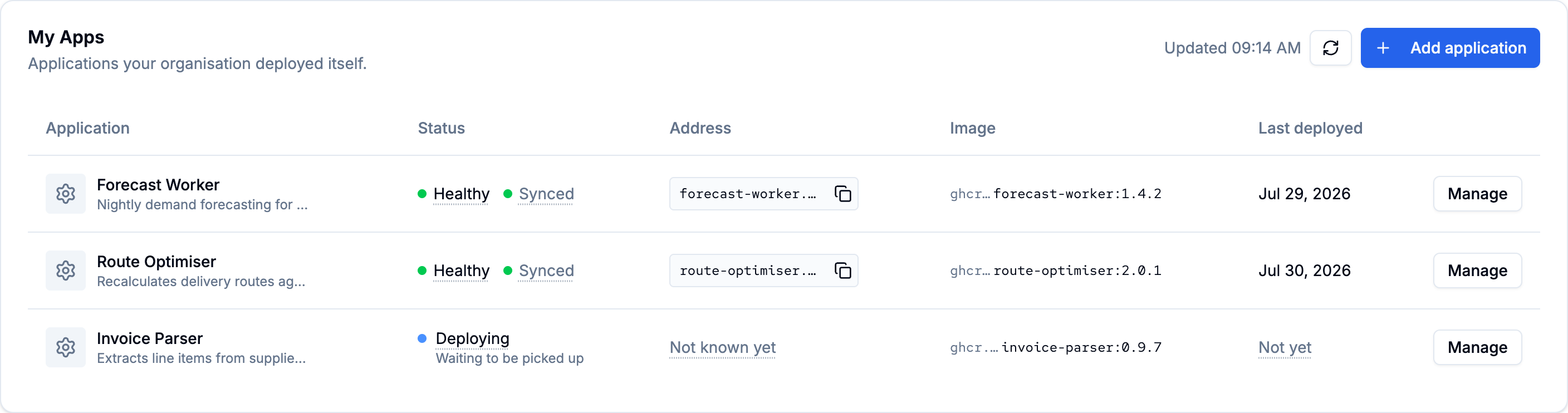
Open the **My Apps** tab to see every application your organisation has deployed. Until you deploy your first one, the tab shows **Deploy your first application** with an **Add application** button.
Each row shows:
* **Application**: logo, name and description.
* **Status**: where the application is right now (see below).
* **Address**: the web address of the application. Click it to open the application in a new tab, or use the copy button.
* **Image**: the image and version you saved. If a different version is still running, you'll also see **Running** followed by that version, for example while a change rolls out.
* **Last deployed**: when the application was last deployed.
* **Manage**: opens the application page.
**Refresh** reloads the list. While an application is being deployed or removed, the list also refreshes itself every 10 seconds.
### What the status means
**While a new application is being deployed**, the status is **Deploying**, with the current step underneath:
* **Waiting to be picked up**: your application is saved and waiting for the platform. This usually takes a few minutes.
* **Starting up**: the platform is starting your application.
* **Taking longer than usual**: still waiting. Nothing is known to have gone wrong.
**Once the application is live**, the status shows two badges. The first tells you how the application is doing:
* **Healthy**: running and responding.
* **Progressing**: a change is rolling out. This is normal right after a deploy or a change.
* **Degraded**: not running as expected. Open the application to see what is happening and read the logs.
* **Suspended**: updates to the application are paused.
* **Missing**: parts of the application can't be found. This usually means something was removed outside the portal.
* **Unknown**: the health couldn't be read just now. Try refreshing.
The second tells you whether your latest settings are in effect:
* **Synced**: what runs matches your saved settings.
* **Out of sync**: what runs is different from your saved settings. You'll see this right after you save a change, until the change has rolled out.
* **Unknown**: this couldn't be read just now.
**While an application is being removed**, the status is **Removing**. It can take a few minutes, and the row has no **Manage** button in the meantime.
### Your application's address
Every application gets its own address in this form:
`https://..glbnxt.com`
For example: `https://app.company.glbnxt.com`
You choose the first part when you deploy, and it can't be changed afterwards. The address appears in the list once the platform has published it. Until then you'll see **Not known yet**.
### Next steps
* [Deploy an application](/configure-glbnxt/platform-configuration/application-management/my-apps/deploy-an-application.md)
* [Manage an application](/configure-glbnxt/platform-configuration/application-management/my-apps/manage-an-application.md)
* [Set environment variables](/configure-glbnxt/platform-configuration/application-management/my-apps/set-environment-variables.md)
---
# Agent Instructions
This documentation is published with GitBook. GitBook is the documentation platform designed so that both humans and AI agents can read, navigate, and reason over technical content effectively. Learn more at gitbook.com.
## Querying This Documentation
If you need additional information that is not directly available in this page, you can query the documentation by asking a question.
Perform an HTTP GET request on the following URL with the `ask` and `goal` query parameters:
```
GET https://docs.glbnxt.com/configure-glbnxt/platform-configuration/application-management/my-apps.md?ask=&goal=
```
`ask` is the immediate question: it should be specific, self-contained, and written in natural language.
`goal` is what the user is ultimately trying to achieve, the reason they need the answer. Sharing it helps GitBook give you a better, more relevant answer. A goal is most helpful when it describes the outcome the user wants rather than restating the question. For example, with `ask=how do I create an API token`, a goal like `automate deployments from our CI pipeline` lets GitBook tailor the answer to that use case.
The response will contain a direct answer to the question and relevant excerpts and sources from the documentation.
Use this mechanism when the answer is not explicitly present in the current page, you need clarification or additional context, or you want to retrieve related documentation sections.